
Accessing your Blooket reports is where the real teaching happens because games are fun but data drives instruction. I spent my first month using Blooket for engagement only. Never looked at reports. Then I discovered I was sitting on a goldmine of student performance data.
Changed everything about how I teach.
Why Reports Matter
Reports show you what students actually know. Not what they say they know. Not what you hope they know. What the data proves they know.
Every question answered during games gets recorded. Right answers. Wrong answers. How long they took. What they picked instead of the correct answer.
This information tells you who needs help, what concepts need reteaching, and whether your lesson actually worked.
Playing Blooket without checking reports is like teaching without ever grading anything. You’re just guessing about student understanding.
Finding Your Reports Dashboard
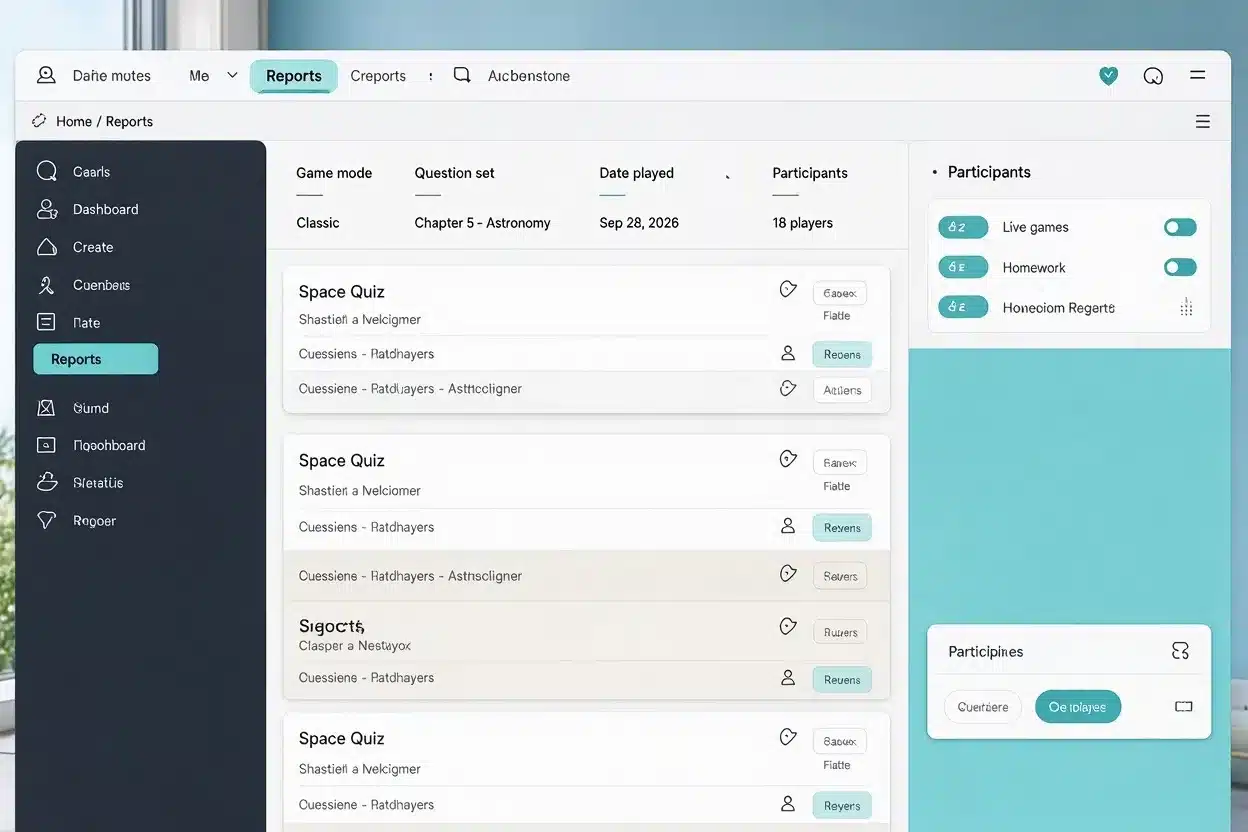
Log into Blooket. Look at your main navigation menu. You’ll see “Reports” or “My Reports” or “Stats” depending on which version you’re using.
Click it. You land on your reports homepage.
Here you see a list of every game you’ve hosted and every homework assignment you’ve created. Live games. Homework. All of it. Organized by date typically.
Most recent sessions appear at the top. Scroll down to find older games.
Each entry shows basic info. Game mode. Question set used. Date played. Number of participants.
Accessing Individual Game Reports
Find the specific game session you want to review. Could be yesterday’s live class game or last week’s practice session.
Click on that session. The detailed report opens.
You get taken to a results page showing everything about that game. Who played. How they scored. Which questions they answered. All the data in one place.
This is your post-game analysis tool. Use it every single time you run a Blooket game.
I pull up reports immediately after games end. While it’s fresh. While I remember what happened during gameplay.
Different Report Views
Reports give you multiple ways to view the same data. Switch between views depending on what you need.
Student view: Shows individual student performance. Click a name and see their question-by-question results. Perfect for parent conferences and individual intervention planning.
Question view: Shows how the whole class performed on each specific question. Question 5 shows 70% wrong answers? Everyone struggled with that concept. Identify that for review tomorrow.
Overview/Summary view: Big picture stats. Class average. Completion rate. Most missed questions. Quick snapshot of overall performance.
Toggle between these views using tabs or dropdown menus in the report interface.
I start with an overview to get the big picture, then drill into the question view to find problem areas, then check the student view for individuals who need help.
Reports for Different Game Modes
Every game mode generates reports but the data looks slightly different.
Racing reports: Show speed and accuracy combined. Who answered fastest. Who answered most correctly. Leaderboard-style data.
Tower Defense reports: Show team performance plus individual contributions. How many questions the class answered correctly total. Which students carried the team.
Gold Quest reports: Show strategy and accuracy. How students allocated resources based on confidence in their answers.
Battle Royale reports: Show elimination rounds and survival rates. Who lasted longest. Performance under pressure data.
All useful. All different angles on student understanding.
Match your game mode choice to the type of data you want. Need pure speed data? Use Racing. Need teamwork data? Try Tower Defense.
Reports for Homework Assignments
Homework results appear in the same reports section as live games but with additional filters.
You can see completion status. Who finished. Who started but didn’t finish. Who never attempted it.
Homework reports often show multiple attempts if you allowed them. Each attempt is logged separately. Track improvement across tries.
Time stamps tell you when students completed homework. Student says they did it during study hall? The timestamp says midnight. Data doesn’t lie.
Downloading Reports
Look for a “Download” or “Export” button on your report page. Usually top right corner.
Click it. Report downloads as a spreadsheet file. CSV or Excel format typically.
Now you have the data outside Blooket’s platform. Import it to your gradebook. Save it for records. Analyze it however you want.
I download every report immediately after reviewing it. File them in folders by month. Creates a paper trail of student progress all year.
More details on downloading game and homework reports if you need them for official documentation.
How Long Reports Stay Available
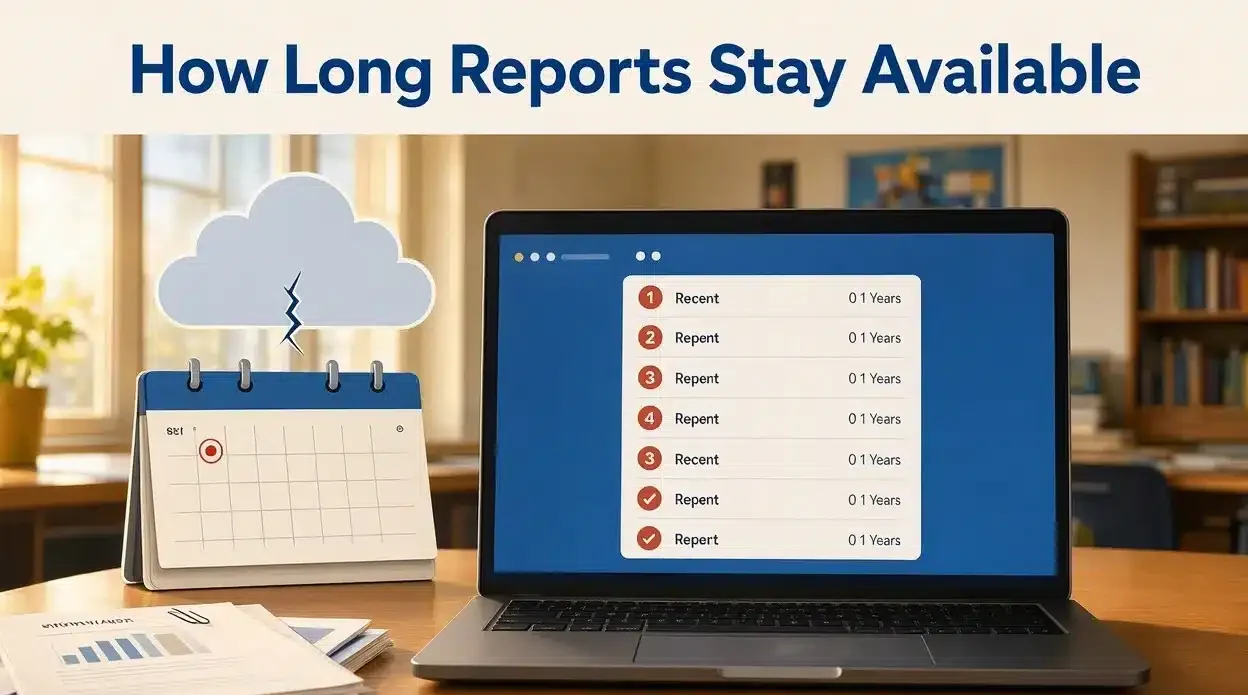
Reports stay in your Blooket account indefinitely as far as I can tell. I have reports from games played two years ago still accessible.
But don’t rely on this. Platforms change. Features get updated. Data migration issues happen.
Download important reports and store them locally. Don’t trust any online platform to preserve your data forever.
Troubleshooting Missing Reports
Played a game but don’t see a report? Few possibilities:
Nobody joined the game: If zero students actually answered questions, no report was generated. Empty games don’t create data.
You ended the game within seconds: If you started and immediately ended early before anyone answered anything, the report might be empty or not generated at all.
Technical glitch: Rare but happens. Internet issues during gameplay can prevent data from saving properly.
Wrong account: Logged into a different Blooket account than the one you used for hosting? Check which account you’re in.
Most “missing report” situations are user error. Double-check your filters and date ranges before panicking.
Filtering Your Reports List
Long list of reports making it hard to find specific sessions? Use filters.
Filter by date range: Show only reports from this week or this month or a custom range.
Filter by game mode: Show only Tower Defense games or only homework assignments.
Filter by question set: Show only games using your “Chapter 5 Review” question set.
Makes navigation way easier when you’ve been using Blooket all year and have hundreds of reports.
I filter by week usually. Monday morning I looked at last week’s reports. Review patterns. Plan intervention for the coming week.
Mobile Access to Reports
Blooket works on phones and tablets. Reports are accessible but the interface isn’t optimized for small screens.
You can pull up reports on your phone during lunch or planning period. Check basics like completion rates and class averages.
Detailed analysis is better on a computer with a full screen. Trying to click through individual student data on a phone is frustrating.
But for quick checks? Mobile works fine. I glance at reports on my phone between classes all the time.
Sharing Reports with Others
Admin wants to see your data? Department chair asking for evidence of student progress? Reports can be shared.
Download the report. Email the file. Or share your screen during a meeting and walk through the online report together.
Some districts have policies about student data privacy. Check before sharing reports containing student names outside your classroom.
I anonymize data before sharing it beyond my principal. Remove names. Keep numbers and patterns only.
Reports and Grading
How you use reports for grading is your decision. Some teachers grade every game. Others use reports for feedback only.
I grade homework based on reports but use class games for formative assessment only. Games are practice. Homework counts.
Reports make grading objectives. No arguing about “I thought I got that right.” The data shows what you answered.
Pull up the report. Show the student their responses. Have a data-driven conversation about their performance.
Using Reports for Lesson Planning
Best use of reports? Planning tomorrow’s lesson based on today’s data.
Class bombed questions about photosynthesis? Tomorrow’s warm-up is photosynthesis review. Class crushed it? Move forward to the next topic.
Reports tell you when to slow down, speed up, or change direction entirely.
I plan my next three days of instruction based on the previous three days of Blooket reports. Data-driven teaching instead of hoping students understood.
Parent Access to Reports
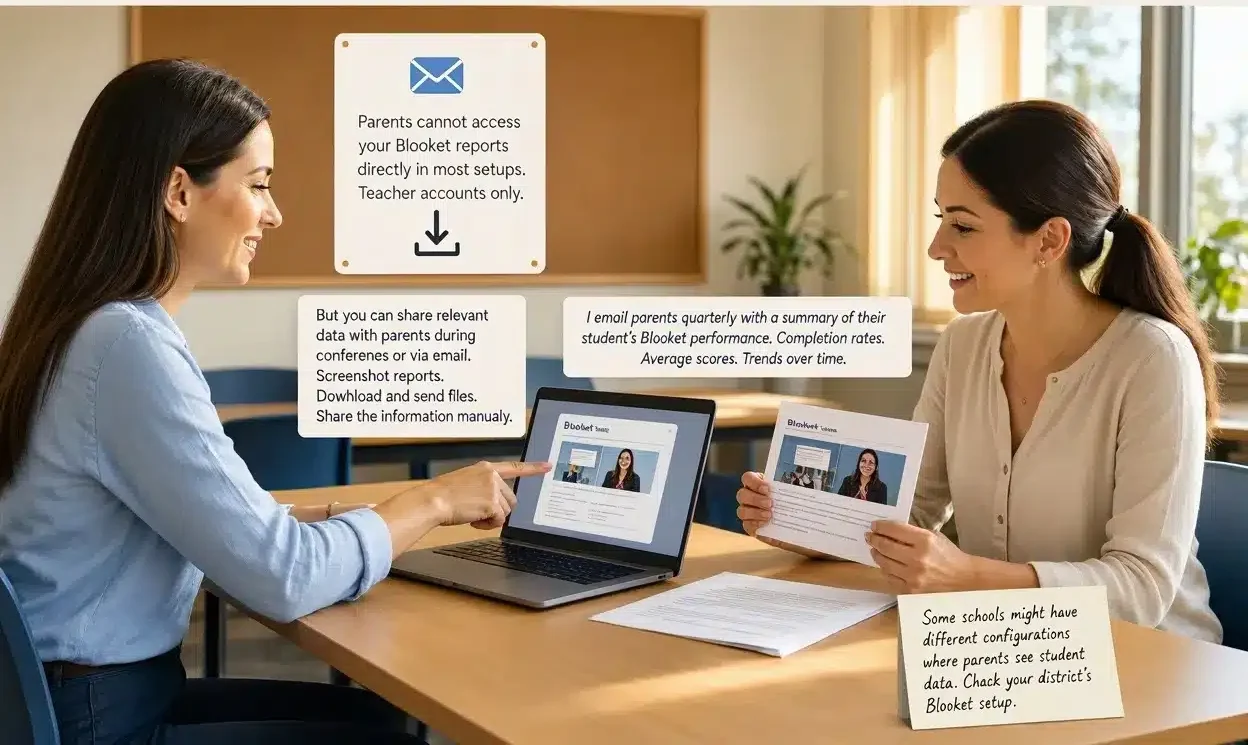
Parents cannot access your Blooket reports directly in most setups. Teacher accounts only.
But you can share relevant data with parents during conferences or via email. Screenshot reports. Download and send files. Share the information manually.
Some schools might have different configurations where parents see student data. Check your district’s Blooket setup.
I email parents quarterly with a summary of their student’s Blooket performance. Completion rates. Average scores. Trends over time.
FAQs
Do reports show student names or just usernames?
Depends on your setup. School-rostered accounts usually show real names. If students join with random names, you see those instead.
Can I delete old reports?
Some versions allow deletion. Others don’t. Check your specific account settings. But why delete data? Storage isn’t an issue.
Can students access their own reports?
Usually no. Reports are teacher-only unless your school configured it differently. Students see their score after games but not detailed reports.
What if I forget to check reports before starting a new game?
Reports don’t disappear. Access them anytime. I’ve reviewed reports weeks after games ended when planning review sessions.
Accessing your Blooket reports turns game time into assessment time and makes your teaching decisions based on evidence instead of guesses.