How to organize Blooket question sets with folders transformed my chaotic dashboard into an actual functional system.
I had 60 random question sets scattered everywhere with zero organization.
Finding anything took forever, and I’d sometimes use the wrong set by accident.
Folders fixed everything.
Why Organization Matters
After six months of using Blooket, your library becomes a disaster zone.
You’ve got:
- Current unit reviews
- Old content from last semester
- Draft sets you’re working on
- Copies of copies of copies
Without folders, it’s like having 100 files on your desktop with no organization.
Good luck finding anything.
Creating Your First Folder
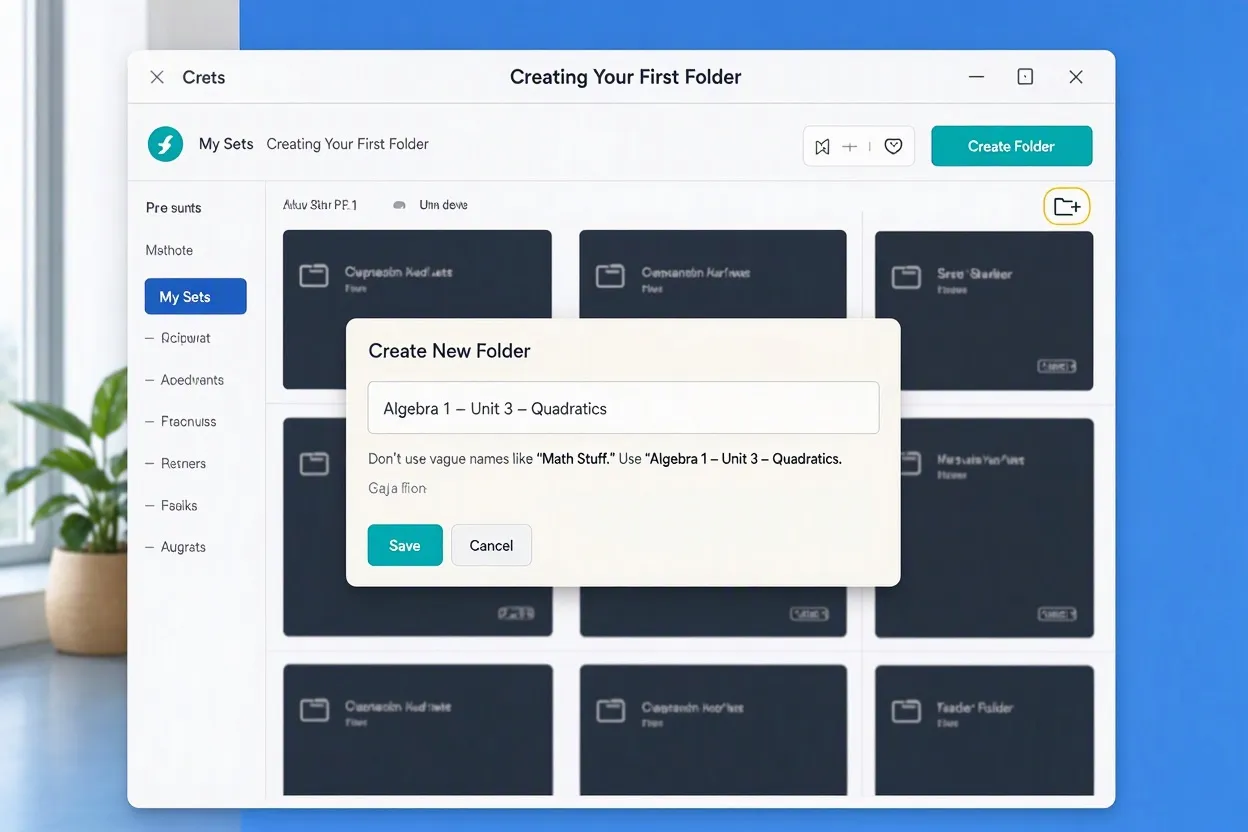
Go to “My Sets” in your Blooket dashboard.
Look for “Create Folder” or a folder icon with a plus sign.
Click it and name your folder something specific.
Don’t use vague names like “Math Stuff.” Use “Algebra 1 – Unit 3 – Quadratics.”
Folder Naming Conventions
I use this system across all my folders:
Subject – Unit Number – Topic
Examples:
- “Biology – Unit 1 – Cell Structure”
- “World History – Unit 5 – World War II”
- “Geometry – Final Review – Comprehensive”
Makes finding content instant instead of playing detective.
Moving Sets into Folders
Click and drag question sets from your main library into the appropriate folder.
Or use the three-dot menu on any set and select “Move to Folder.”
Choose your destination folder and boom—organized.
I spent one Sunday afternoon organizing everything. Took two hours but changed my life.
Creating Folder Hierarchies
You can nest folders inside folders.
Main folder: “8th Grade Science”
Subfolders: “Unit 1 – Matter,” “Unit 2 – Energy,” “Unit 3 – Genetics”
Keeps related content together without cluttering your main view.
Some teachers go three levels deep. I cap at two levels or it gets confusing.
Organizing by Time Period
One organizational approach:
- Current Semester
- Last Semester Archive
- Next Semester Prep
Keeps active content separate from archived stuff.
I move everything to archives at the end of each term.
Organizing by Class Period
If you differentiate heavily between classes:
- Period 1 – Honors Biology
- Period 3 – Regular Biology
- Period 5 – Modified Biology
Each class gets customized content in their own folder.
Organizing by Question Type
Another system:
- Quick Warm-ups (5-10 questions)
- Standard Quizzes (15-25 questions)
- Comprehensive Reviews (40+ questions)
Find content based on how much time you’ve got in class.
Color Coding Folders (if available)
Some Blooket versions let you color-code folders.
Use it strategically:
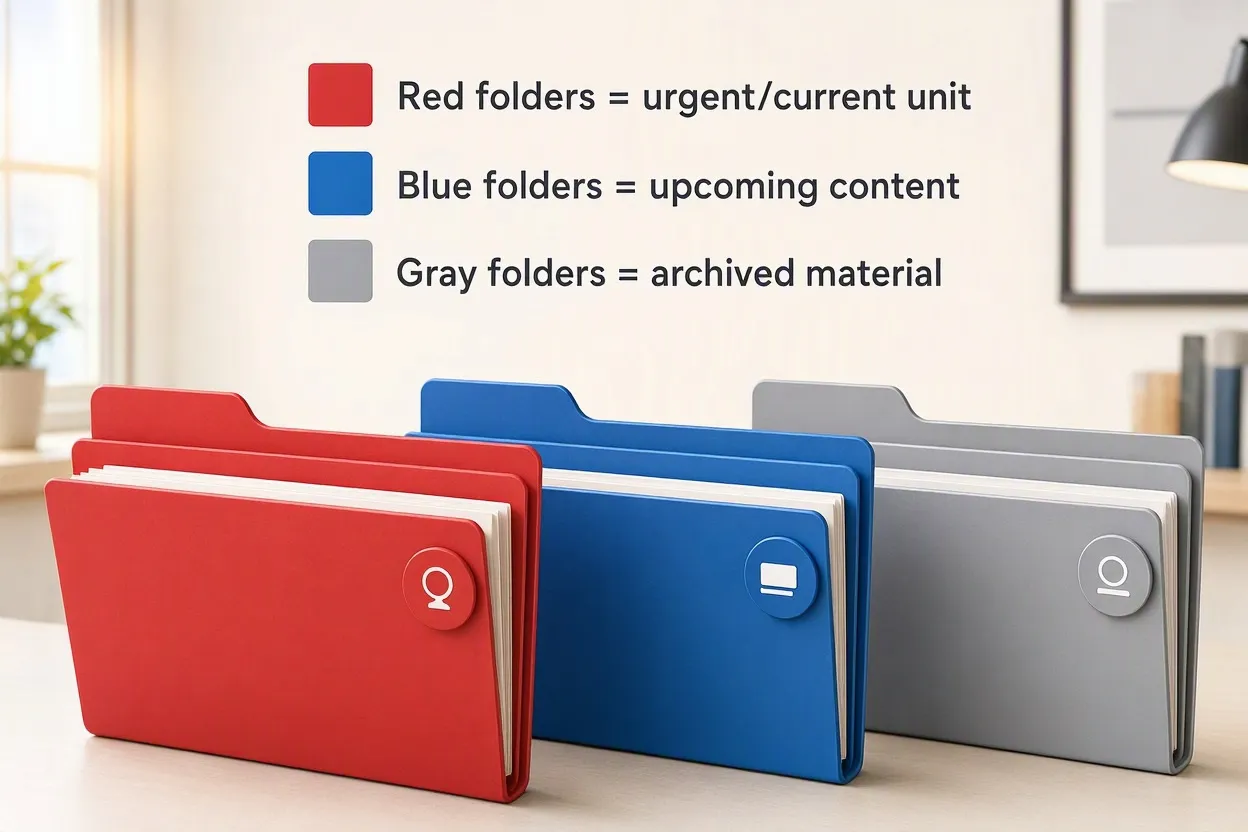
- Red folders = urgent/current unit
- Blue folders = upcoming content
- Gray folders = archived material
Visual organization helps you scan faster.
Managing Draft Sets
Create a “Drafts and Works in Progress” folder.
Every unfinished, untested, or experimental set goes here.
Once you’ve polished and tested a set with students, move it to the appropriate unit folder.
Keeps your working library clean and professional.
Seasonal Organization
Some teachers organize by calendar:
- Back to School Sets
- Holiday Review Games
- Spring Test Prep
- End of Year Activities
Works great if you reuse the same content annually.
Collaboration Folders
Created a “Shared from Colleagues” folder for sets other teachers send you.
Then you can merge the best parts into your own sets or keep them as-is.
Separates your original content from borrowed content.
Renaming Folders
Made a folder but hate the name? Change it anytime.
Click the three-dot menu on the folder.
Select “Rename” and update it.
I rename folders constantly as my organizational system evolves.
Deleting Empty Folders
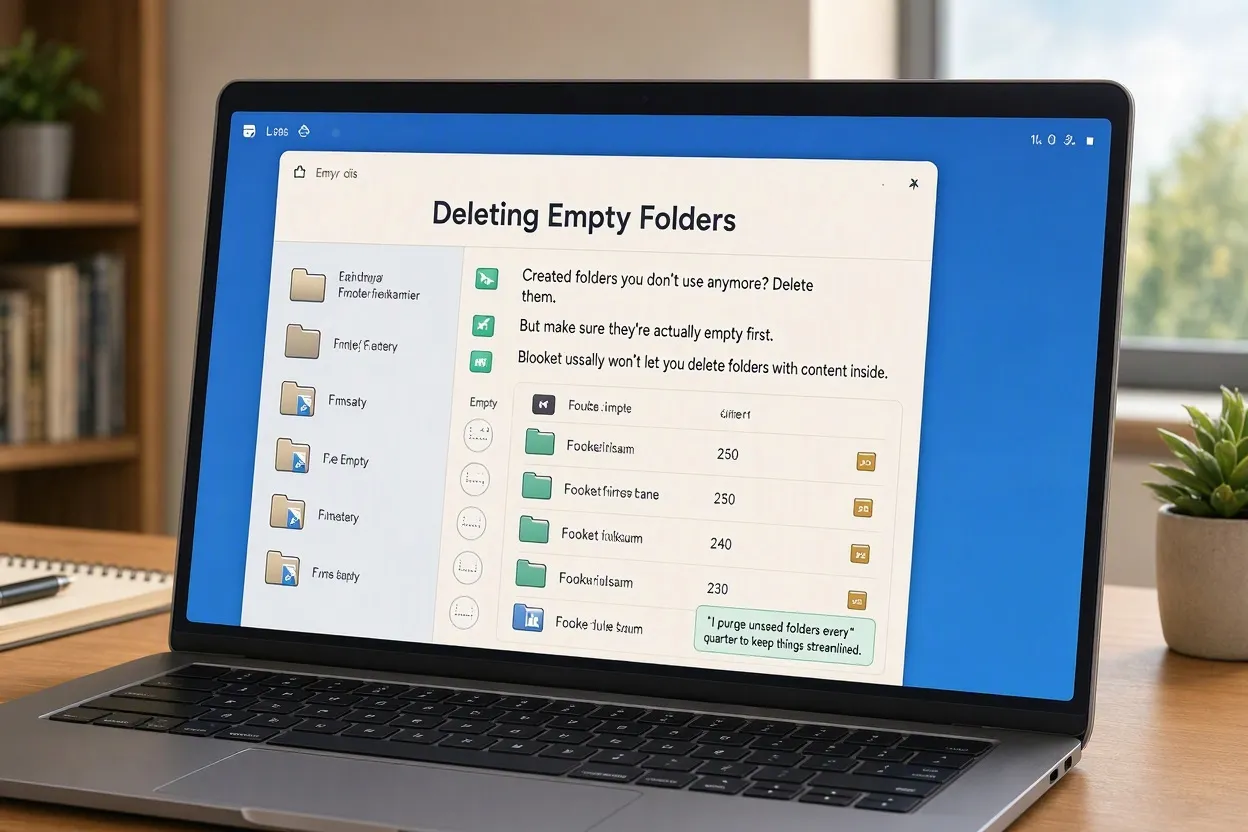
Created folders you don’t use anymore? Delete them.
But make sure they’re actually empty first.
Blooket usually won’t let you delete folders with content inside.
I purge unused folders every quarter to keep things streamlined.
Backup Organization Strategy
Keep your best, most-used sets in a “Greatest Hits” folder.
When you need content fast, check there first.
Mine has 15-20 sets I use multiple times per year across different units.
FAQ
Is there a limit to how many folders I can create?
No limit on free or paid accounts. Create as many as you need.
Can I put one set in multiple folders?
No, each set lives in one folder. Copy the set if you need it in multiple places.
Do folders affect my ability to share sets?
No, you can still share sets regardless of folder location.
Can I organize folders alphabetically?
Yes, most Blooket versions let you sort folders alphabetically or by date created.