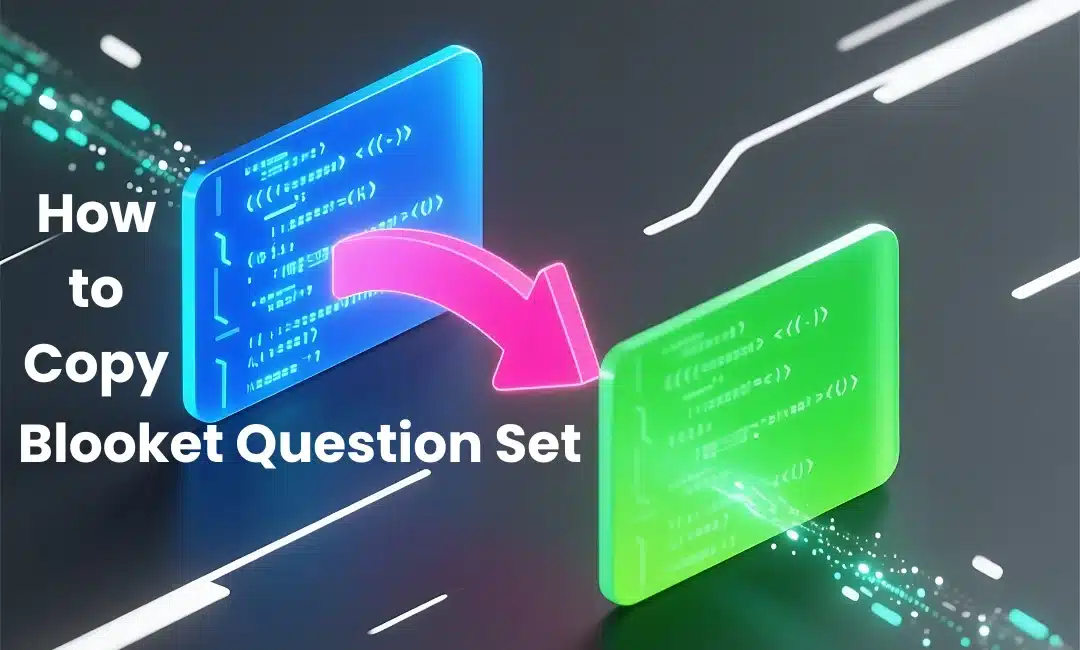
How to copy a Blooket question set is essential for reusing content across multiple classes without destroying your original.
I used to edit my Period 2 set, then realize I just ruined the version I needed for Period 5.
Copying solved that nightmare instantly.
Why Copy Your Own Sets
You might think, “I already have the set, why copy it?”
Here’s why:
- Different class adaptations (honors vs. regular sections)
- Modified versions (shorter for sub days, longer for reviews)
- Backup copies before major edits
- Year-to-year archives (2024 version vs. 2025 version)
I copy almost every set at least once for differentiation purposes.
Finding Your Sets to Copy
Go to “My Sets” on your Blooket dashboard.
Browse through your library and find the set you want to duplicate.
Click on it to open the full question set.
The Copy Button Location
Look for the three-dot menu or “More Options” icon.
Click it and select “Copy” or “Duplicate.”
Some versions of Blooket put this button right on the question set page.
Can’t miss it once you know where to look.
What Gets Copied
Blooket duplicates everything:
- All questions and answers
- Images and media
- Time limits per question
- Point values
- Question order
Everything except the set’s play history and statistics.
Your copy starts fresh with zero plays.
Naming Your Copy
The duplicated set automatically gets “(Copy)” added to the end of the name.
Change it immediately to something meaningful.
I use naming conventions like:
- “Unit 4 Quiz – Period 2 Modified”
- “Fractions Review – Honors Version”
- “Photosynthesis Test – 2025”
Saves confusion later.
Privacy Settings on Copies
Your copy inherits the privacy setting from the original.
Public set → copy is public.
Private set → copy is private.
Change the privacy on your copy if needed using these instructions.
I usually keep copies private until I’ve customized them.
Editing Your Copy
Once copied, go wild with edits.
The original stays untouched while you:
- Delete questions for shorter versions
- Add new questions for specific classes
- Change difficulty levels
- Adjust time limits
This is why copying is so powerful—experiment without consequences.
Copying vs. Making Public
Don’t confuse copying your own set with copying public sets from other teachers.
Your own sets: you can copy them anytime.
Other teachers’ public sets: you can copy those too, but through the Discover tab.
Different processes, same result—a set in your library.
Using Copies for A/B Testing
Here’s a teacher hack: create two copies of the same set with different question orders or difficulty progressions.
Use Copy A with one class, Copy B with another.
Compare which version produces better learning outcomes.
I did this with a polynomial unit and found that spiraling difficulty worked better than starting hard.
Archiving Old Versions
Before making major changes to a successful set, copy it first.
Label the copy “Unit 3 Review – Archive 2024.”
Now you’ve got a backup if your new edits don’t work out.
I’ve saved myself three or four times with archived copies.
Copying for Different Game Modes
Some game modes work better with shorter sets.
Copy your 40-question comprehensive review.
Delete it down to 20 questions for Tower Defense (which takes longer per question).
Keep the full 40-question version for Gold Quest (which moves faster).
Managing Multiple Copies
After a year, you’ll have copies everywhere.
Use folders to organize them:
- “Active Sets – Current Year”
- “Archives – Previous Years”
- “Drafts and Experiments”
Check out how to organize Blooket question sets with folders for the complete system.
Bulk Copying Limitation
Bad news: you can’t copy multiple sets at once.
Have to do them one by one.
If you need to copy ten sets, grab coffee—it’ll take a few minutes.
Sharing Copies with Colleagues
Made a great modified version? Share it.
Copy the set, make it public or share the direct link, and let your team use it.
They can make their own copies and customize further.
Teaching is collaborative—spread the wealth.
When NOT to Copy
Don’t copy just for the sake of copying.
Only duplicate when you have a specific purpose.
I’ve seen teachers with 80 versions of the same set because they copied compulsively.
That’s digital hoarding. Don’t be that person.
FAQ
How many times can I copy the same set?
Unlimited. Copy as many times as you need for different purposes.
Do copies count toward my storage limit?
Free accounts have unlimited sets, so copy away without worry.
Can I copy a set someone else made public?
Yes, but that’s a different process—use the Copy button in the Discover tab.
Will copying a set also copy its folder location?
No, copied sets appear in your main library. Move them to folders manually.