How to make a question set public or private in Blooket controls who sees your content and who doesn’t. I accidentally left a half-finished, typo-filled set public for three months.
Random teachers were copying my garbage content. So embarrassing.
Understanding Public vs. Private
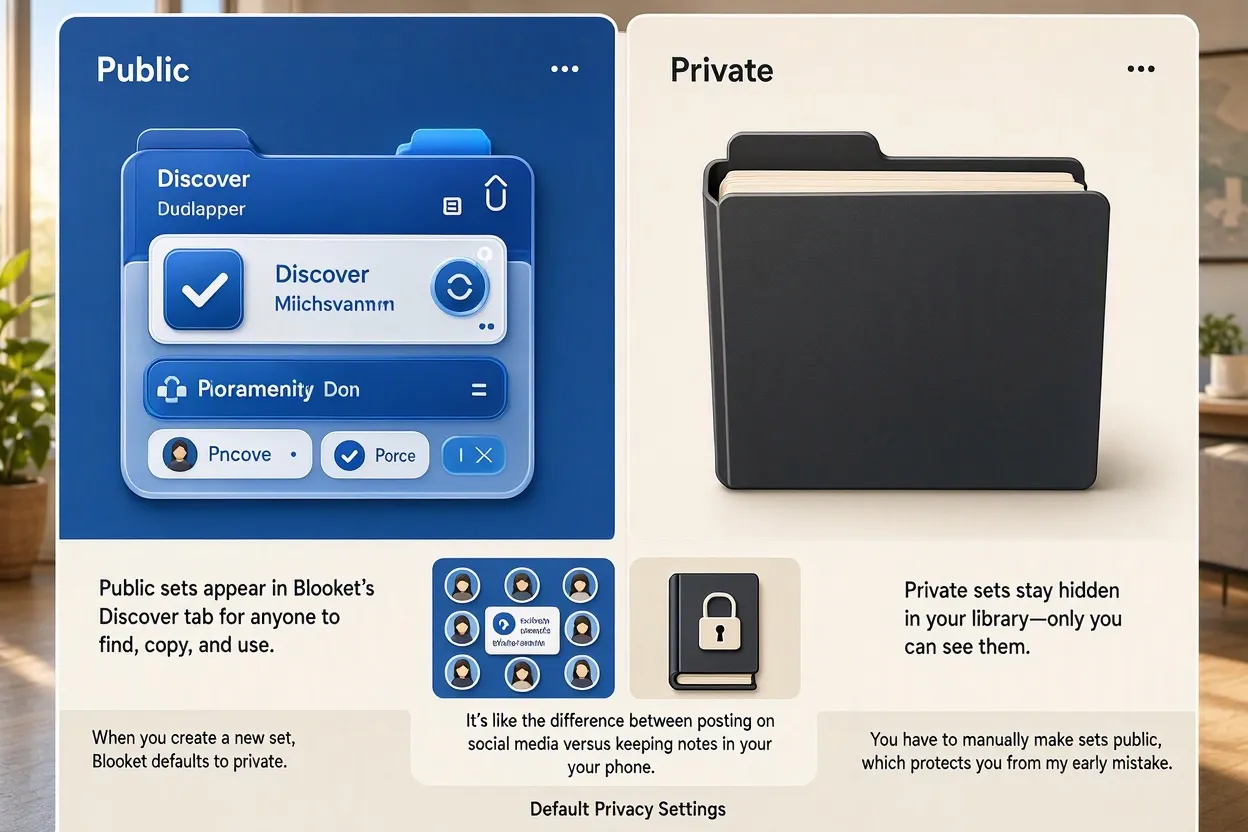
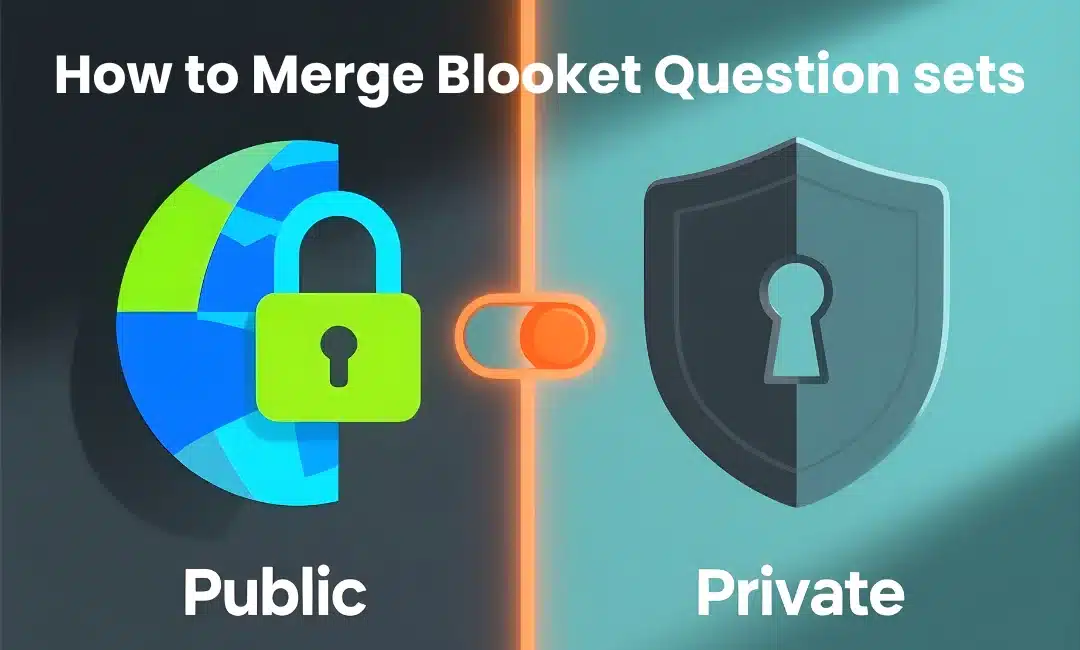
Public sets appear in Blooket’s Discover tab for anyone to find, copy, and use.
Private sets stay hidden in your library—only you can see them.
It’s like the difference between posting on social media versus keeping notes in your phone.
Default Privacy Settings
When you create a new set, Blooket defaults to private.
Smart move by Blooket—prevents accidental sharing of unfinished work.
You have to manually make sets public, which protects you from my early mistake.
Finding Privacy Settings
Open any question set from your “My Sets” library.
Look for the three-dot menu or settings icon in the top right.
Click it and you’ll see “Privacy Settings” or “Make Public/Private.”
Takes two seconds to access.
Making a Set Public
Click “Make Public” in the settings menu.
Blooket might ask you to confirm—hit yes.
Your set immediately becomes searchable in the Discover tab.
Other teachers can now find, copy, and use your content.
I make sets public after I’ve:
- Tested them with students to catch errors
- Proofread everything at least twice
- Confirmed accuracy of all answers
Benefits of Public Sets
Sharing publicly helps other teachers who are drowning in prep work.
Plus, public sets:
- Build your reputation as a content creator
- Get you followers who appreciate quality work
- Contribute to the teaching community
I’ve gotten thank-you messages from teachers across the country who used my public sets.
Feels good.
Making a Set Private
Already public but want to hide it? No problem.
Open the set, click settings, select “Make Private.”
The set disappears from Discover immediately.
Anyone who previously copied it keeps their copy, but new teachers can’t find yours anymore.
When to Keep Sets Private
I keep sets private when they’re:
- Work in progress (incomplete or untested)
- Highly specific to my class inside jokes or references
- Contain sensitive content related to my school
- Draft versions I’m experimenting with
Basically, if I wouldn’t want my principal seeing it, it stays private.
Changing Privacy Multiple Times
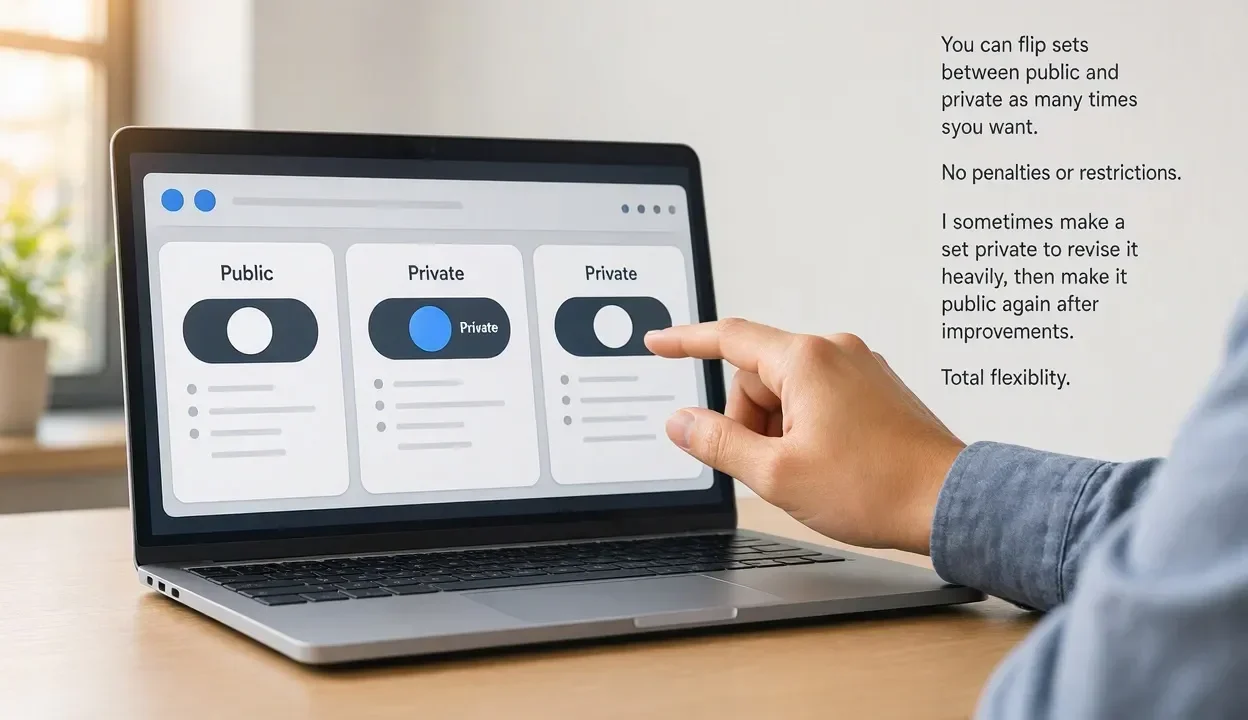
You can flip sets between public and private as many times as you want.
No penalties or restrictions.
I sometimes make a set private to revise it heavily, then make it public again after improvements.
Total flexibility.
Privacy and Collaboration
Want to share with specific colleagues but not the whole world?
Keep it private and share the direct link with your team.
They can access and copy it without the set being public.
Perfect for department collaboration.
What Happens to Copied Sets
If teachers copied your set while it was public, they keep their copies even if you make yours private.
You can’t revoke access retroactively.
Once it’s copied, it’s out there.
This is why I only publish polished, final-version content.
Checking Your Public Sets
Go to your profile and filter by “Public Sets.”
Quick audit of everything you’ve shared.
I do this quarterly to make sure nothing embarrassing is public.
Found a set from my first year teaching that was rough. Made it private immediately.
Public Sets and Attribution
When your set is public, your username appears as the creator.
Teachers who copy it see your name.
Good for building credibility, but also means typos have your name on them.
Double-check everything before going public.
Privacy and SEO
Public sets can appear in Google search results.
Type “Blooket photosynthesis quiz” into Google and you’ll find public sets.
This means way more teachers might discover your content.
But also means parents and students might stumble on your stuff.
Managing Multiple Set Versions
Pro strategy: keep a private “master version” for yourself.
Make a copy and share that copy publicly.
If the public version gets feedback or needs updates, you’ve still got your perfect private version.
Folders and Privacy
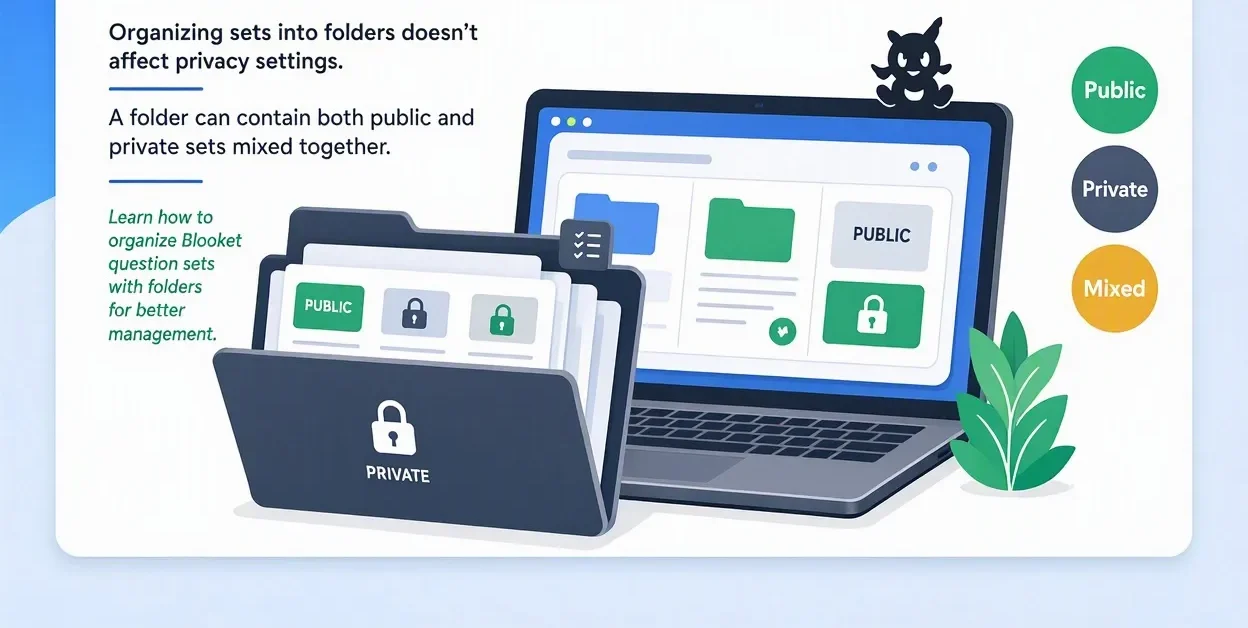
Organizing sets into folders doesn’t affect privacy settings.
A folder can contain both public and private sets mixed together.
Learn how to organize Blooket question sets with folders for better management.
FAQ
Can I see who copied my public set?
No, Blooket doesn’t provide analytics on who copied your sets or how many times.
Will students be able to find my public sets?
Yes, if they search for them. Keep student-facing practice sets private if needed.
Can I make just one question in a set private?
No, privacy applies to the entire set, not individual questions.
Does making a set public affect my storage or account limits?
No, public and private sets count the same toward your library.