
How to create a Blooket question set from scratch intimidated me at first. I thought it would take forever and be super complicated.
Turns out it’s easier than making a Google Form, and way more fun for students.
Starting from Your Dashboard
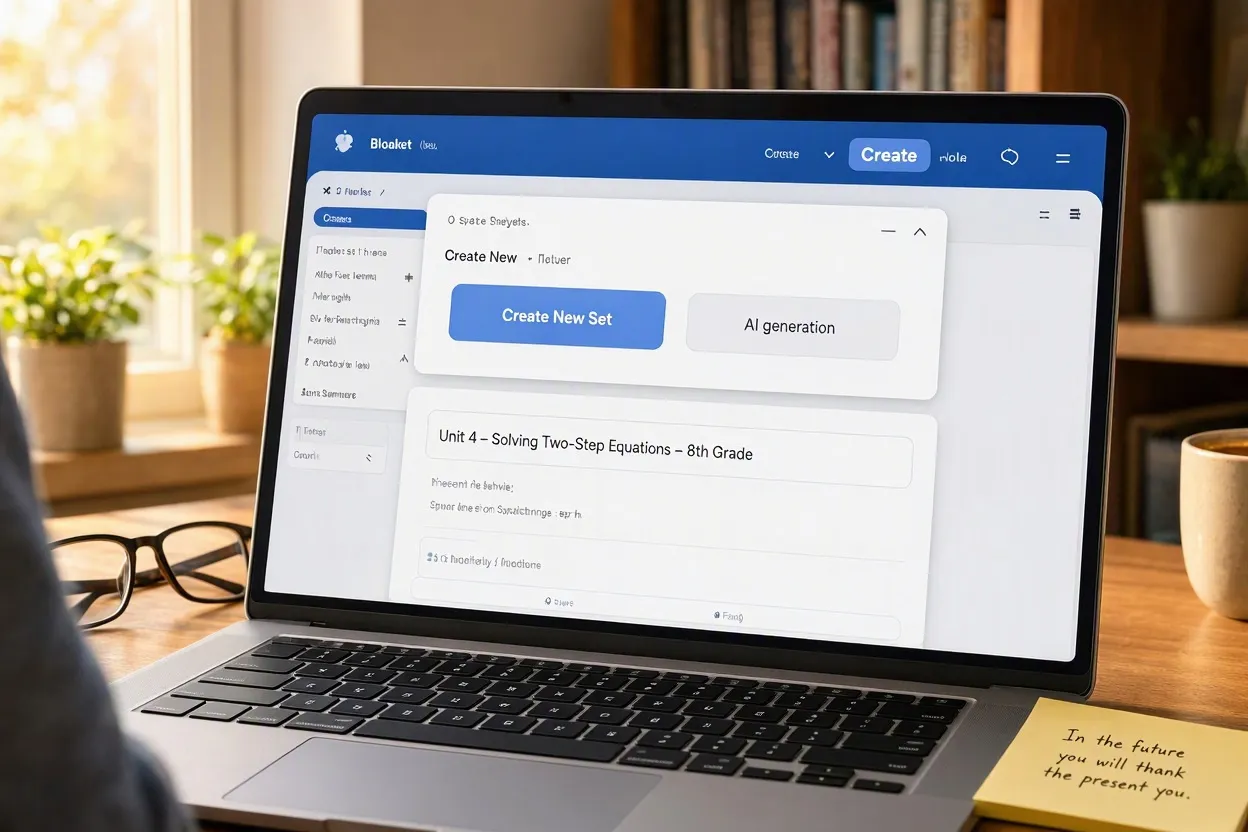
Log into Blooket and click “Create” in the top navigation.
You’ll see options for creating a new set or using AI generation.
Click “Create New Set” to build from scratch.
Naming Your Question Set
First thing: give your set a clear, specific name.
Don’t call it “Math Quiz.” That tells you nothing six months from now.
Try “Unit 4 – Solving Two-Step Equations – 8th Grade.”
In the future you will thank the present you.
Adding Your First Question
Click the big “Add Question” button.
You’ll see a text box for your question and multiple answer slots below.
Type your question clearly and concisely—no need to overthink it.
Creating Answer Choices
Blooket gives you four answer slots by default.
Fill in the correct answer first (I always put it in slot one, then randomize later).
Then add three wrong answers that seem plausible but aren’t correct.
Pro tip: Make wrong answers believable. If the answer is 12, use 11, 13, and 10 as distractors—not 500.
Marking the Correct Answer
See the checkmark next to each answer slot?
Click it on the correct answer.
Blooket highlights it in green so you know which one is right.
I’ve accidentally marked wrong answers before. Always double-check this part.
Question Types Available
Blooket supports several question formats:
- Multiple choice (the default and most popular)
- True/False (quick and easy for fact checking)
- Short answer (not available in all game modes)
Stick with multiple choice for maximum game mode compatibility.
Adding Images to Questions
Click the image icon above your question text.
Upload a picture from your computer or paste an image URL.
I use images for:
- Math graphs and diagrams
- Science diagrams
- Historical photos
- Visual vocabulary
Makes questions way more engaging.
Setting Time Limits Per Question
At the bottom of each question, you can set a custom time limit.
The default is usually 60 seconds, but I adjust based on difficulty.
Simple recall questions? 20 seconds.
Complex problem-solving? 90 seconds.
Duplicating Questions
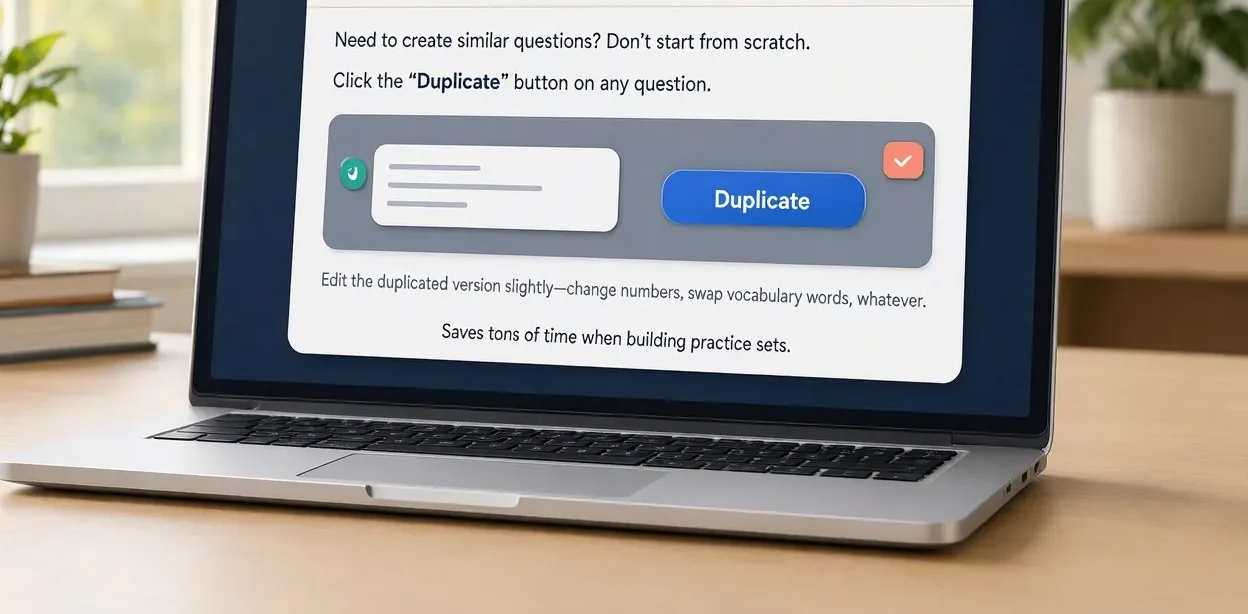
Need to create similar questions? Don’t start from scratch.
Click the “Duplicate” button on any question.
Edit the duplicated version slightly—change numbers, swap vocabulary words, whatever.
Saves tons of time when building practice sets.
Reordering Questions
Drag and drop questions to rearrange them.
I like to start easy, ramp up difficulty in the middle, then end with medium-difficulty questions.
Keeps students engaged without crushing their confidence early.
Adding Explanations
Some question types let you add explanations that show after students answer.
I use this for common mistakes:
“Remember, perimeter is the distance AROUND the shape, not the area inside.”
Super helpful for learning, not just assessment.
Importing vs. Creating Manually
Creating manually is great for small sets (10-20 questions).
For larger sets, consider importing questions from a spreadsheet into Blooket or using AI generated question sets with Khanmigo.
Way faster for bulk content.
Saving Your Progress
Blooket auto-saves as you work.
But I still hit “Save” manually every few questions out of paranoia.
Lost a 30-question set once because my internet died. Never again.
Testing Your Set Before Using
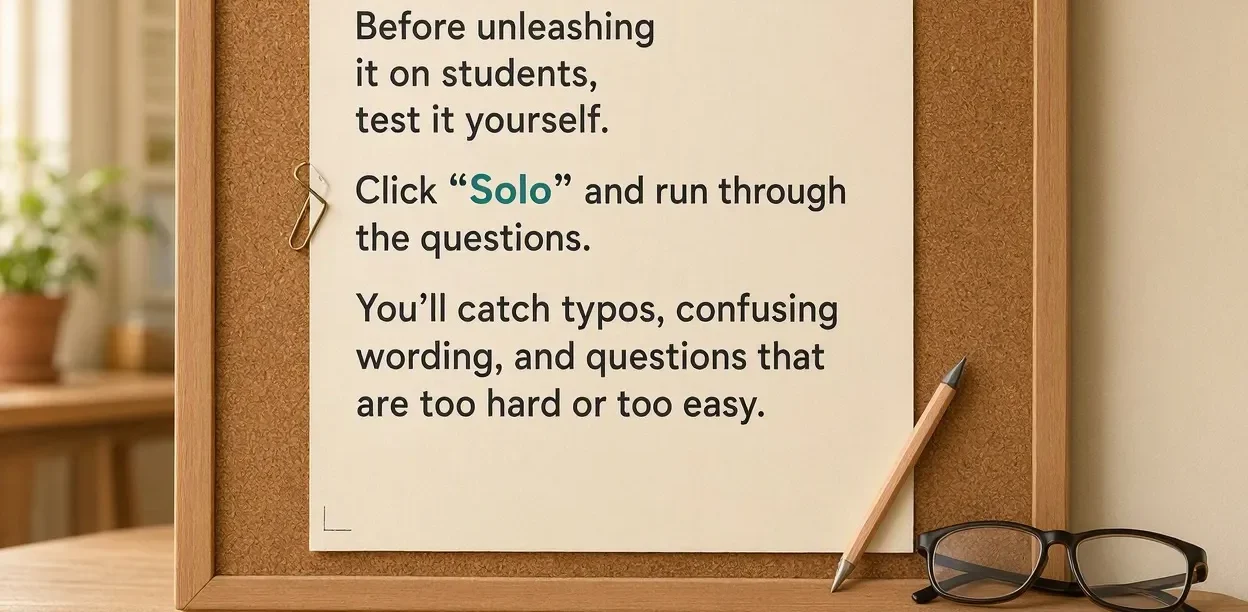
Before unleashing it on students, test it yourself.
Click “Solo” and run through the questions.
You’ll catch typos, confusing wording, and questions that are too hard or too easy.
FAQ
How many questions should a set have?
I recommend 15-25 questions for most game modes—enough variety without dragging on.
Can I add videos to questions?
Not directly, but you can link to videos in the question text.
Is there a character limit for questions?
Yes, but it’s generous—around 200 characters, which is plenty for clear questions.
Can I create sets on mobile?
Technically yes, but it’s clunky. Desktop is way better for creating content.