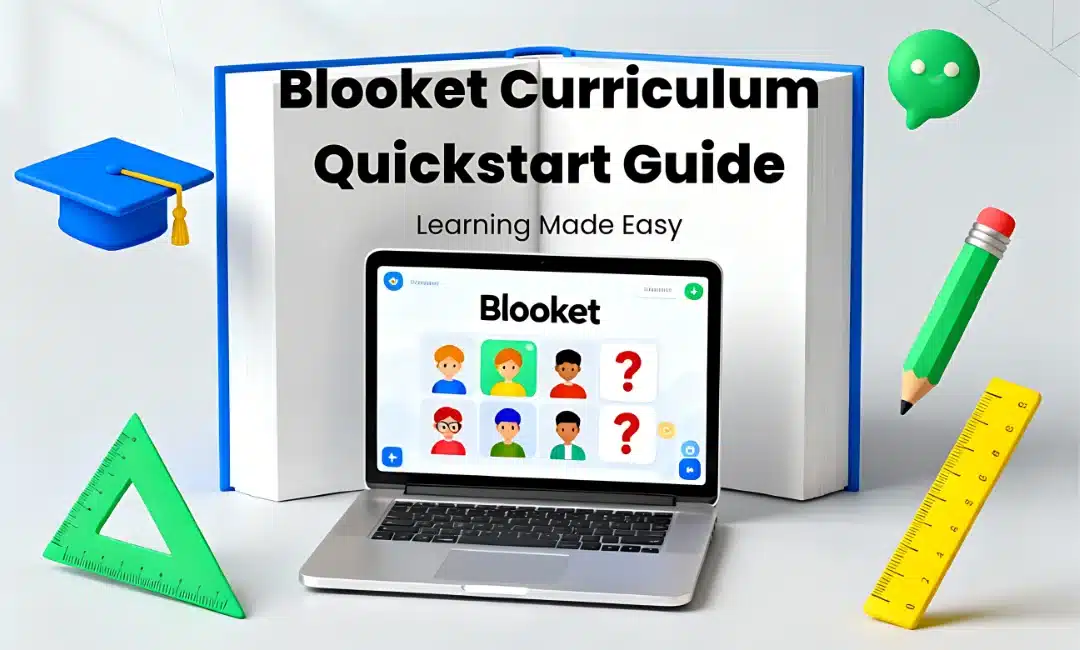
Blooket curriculum quickstart guide is what I wish someone handed me on day one. I spent two weeks clicking around aimlessly before figuring out how this platform actually works.
Let me save you that headache.
Getting Started with Blooket
First thing: create your account at Blooket.com.
It takes like two minutes.
You’ll need to choose between a teacher account and a student account—obviously pick a teacher.
Once you’re in, the blooket dashboard looks intimidating. Don’t panic.
Understanding the Dashboard
Your main hub has three sections you need to know:
- Discover – where you find pre-made question sets
- My Sets – your personal library of questions
- News – updates and new features (skip this unless you’re bored)
I literally only use Discover and My Sets 99% of the time.
Your First Question Set
Here’s what I did on day one, and you should too:
Go to Discover and search for your subject and grade level.
Found a good set on “basic multiplication”? Hit the copy button.
Now it’s yours to customize. See our guide on how to copy a public question set in Blooket for details.
Choosing Your Game Mode
Blooket has like fifteen different game modes.
My students go crazy for Tower Defense and Gold Quest.
Each mode works differently:
- Tower Defense – answer questions to defend your tower
- Gold Quest – swap and steal gold while answering
- Racing – speed matters here
Try three or four modes with your class and see what sticks.
Setting Up Your First Game
Click “Host” on any question set.
Pick your game mode.
Choose between “Solo” or “Team” mode depending on your class size.
Then you get a join code—throw that on your projector and watch kids scramble to their devices.
Class Management Tips
I learned this the hard way: always use the randomized name generator.
Kids pick inappropriate usernames if you let them type freely.
Trust me on this one.
Also, set a time limit per question. I use 30 seconds for most topics.
Keeps the energy high and prevents kids from googling answers.
Organizing Your Content
After a month, I had like forty question sets with zero organization.
Nightmare.
Create folders immediately. I organize mine by:
- Unit number
- Subject
- Difficulty level
Check out how to organize Blooket question sets with folders for the full breakdown.
Using Homework Mode
Homework mode is clutch for remote learning or absent students.
Assign a set, set a deadline, and kids can play solo at home.
You get all the data on who completed it and how they scored.
Reports and Data
After each game, Blooket gives you a breakdown of:
- Individual student performance
- Which questions stumped everyone
- Time spent per question
I screenshot these reports and use them to plan my next lesson.
Integration with Your Curriculum
Here’s my weekly routine:
Monday: Find or create question sets for the week using AI generated question sets with Khanmigo.
Tuesday-Thursday: Run quick 10-minute Blooket games as warm-ups.
Friday: Big review game with a more complex set.
Common Beginner Mistakes
Don’t make questions too easy. Kids get bored.
Don’t make them too hard either. Kids get frustrated and stop trying.
Sweet spot: 70-80% accuracy rate across your class.
Upgrading to Plus
Free Blooket works fine for most teachers.
But Plus gives you:
- Enhanced reports
- More game modes
- Priority support
I survived a year free before upgrading. You’ll know when you need it.
FAQ
How many students can join one game?
Up to 60 students can play simultaneously in most game modes.
Can I reuse question sets throughout the year?
Yes, save and reuse any set as many times as you want.
Do students need accounts to play?
No, they just need the join code and a device with the internet.
Can I see individual student progress over time?
With Blooket Plus, yes. Free accounts show per-game data only.